For questions, please contact us at (855) 534-4433 between 8:00 AM and 5:00 PM Monday through Friday.
Yes. To avoid delays in accessing the new system, please update your contact information to ensure the information we have on record is accurate. When we move to the new system, we will send a One-Time Passcode to the phone number and/or email address on our records, and you will not be able to access the system without it.
Yes. At initial login, you will have access to 18 months of transaction history.
Yes. You will continue to have access to 7 years of eStatements.
Any transactions (e.g. recurring transfers, bill payments) previously scheduled in the current Online Banking System, will be carried over to the new system and processed as normal, provided they are scheduled prior to August 8 at 5 PM CT.
Yes. You will need to use a recent version (last 2 released) of Google Chrome, Mozilla Firefox, Apple Safari or the last version of Microsoft Edge.
You can access the new Bill Payment service by logging into Online Banking and selecting “Bill Payment” under the “Payments” tab. Your recent existing activity, payees, and payment templates should be available; however, some payees may need to be re-added.
No action is required. All previously entered Bill Pay information (i.e. payees, scheduled payments, recurring payments, etc.) should remain in your online Bill Pay profile; however, some payees may need to be re-added, or recurring payments re-scheduled.
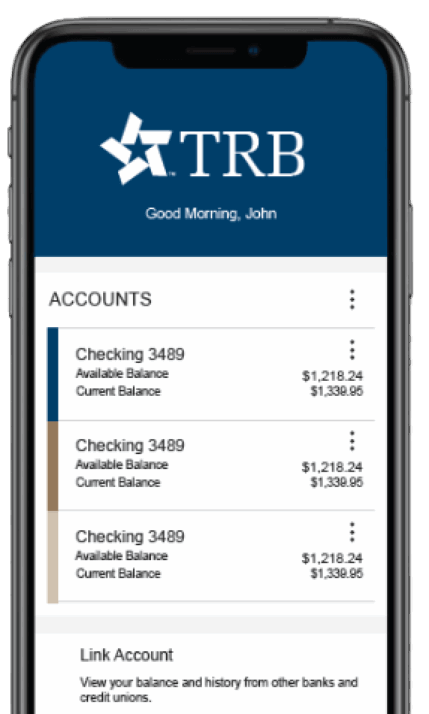
Install the TRB mobile banking application to use mobile banking on your iOS or Android device. You can download the app from the Apple App Store or the Google Play store.
To install the app, do one of the following:
Yes, you can if it meets our password policy requirements:
You can use a web browser to connect to the digital banking site on a desktop computer or other supported device. It is recommended that you enable pop-up windows in the browser for your digital banking site. If they aren’t enabled, certain features may appear in separate windows in your browser or may not appear at all.
Tip: For the best experience with digital banking on a tablet or smartphone, use the mobile banking app instead of an Internet browser.
To log in, enter your Login ID and Password when prompted. If you enter an incorrect password too many times, your account will be temporarily suspended, and you will not be able to log in. If your login ID is blocked, contact TRB customer service to unblock your login ID.
Token Users: Depending on your security needs, we may configure your account to use Symantec™ Validation and ID Protection (VIP) Service Tokens or the VIP Access app for mobile devices. If your account uses a token, you enter the token code instead of a secure access code every time you log in, unless your browser is registered.

Yes. Online and Mobile Banking is one seamless user experience utilizing a single User ID and Password.
Mobile Banking is available to everyone. Install the TRB mobile banking application to use mobile banking on your iOS or Android device. You can download the app from the Apple App Store or the Google Play store.
To install the app, do one of the following:
You may use the service for no cost, however, your wireless carrier may charge you fees related to this service.
Yes, Our Mobile Banking service utilizes best practice security services such as HTTPS, TLS encryption, password access, biometrics and application time-out when not in use. Only the phones that you enroll can access your bank accounts and no account data is ever stored on your phone.
Our Mobile Banking app is supported on most iPhone®, iPad®, and AndroidTM devices. You can also use mobile phones with a mobile web browser that supports cookies.
After successful enrollment, your phone will receive a text message with your Mobile Banking URL.
Yes. The mobile app allows you to do a mobile deposit by taking photos of the front and back of the check. Once you have the image lined up in the viewer, click the camera icon in the upper right corner to take the photo.
Yes. You will have the ability to send payments from your mobile device.
For questions, please contact us at (855) 534-4433 between the hours of 8:00am to 5:00pm Monday through Friday.
Log in to Online Banking. Select “Security Preferences” under the “Services” menu. Select “Change Password.” Enter your old password, create a new password, and confirm your new password following the onscreen password criteria.
Yes. To avoid delays in accessing the new system, please update your contact information to ensure the information we have on record is accurate. When we move to the new system, we will send a One-Time Passcode to the phone number and/or email address on our records, and you will not be able to access the system without it.
Yes. Once you have successfully logged into the Online Banking system, you can update your preferred contacts via the “Settings” > “Security Preferences” menu. Under this menu, you can change your login name, password, or set up additional Security Access methods.
Yes. Alerts can be set up. Account, Date, History, Insufficient Funds, and Transaction alerts can be established. Alerts can also be delivered via the system’s secure mailbox, or email, phone, or text. Dual authorization via alerts is also available to ensure transactions receive the proper approvals.
If you or your company are enabled for these services, they will appear in the left-hand navigation pane.
The cut-off time is 6:00 PM CT daily, excluding weekends.
The cut-off time is 4:00 PM CT daily, excluding weekends.
A strong password helps you protect your account. To create a strong password, keep the following guidelines in mind:
Remember to avoid the following password pitfalls:
Your new Business Online Banking service will be available beginning Monday, August 11, 2025 at 7:00 AM CT.
Yes. In order to avoid delays in accessing the new system, please update your contact information to ensure the information we have on record is accurate. When we move to the new system, we will send a One-Time Passcode to the phone number and/or email address on our records, and you will not be able to access the system without it.
As we complete the system conversion, you will need to modify your Quicken/QuickBooks settings to ensure the smooth transition of your data. In preparation for the conversion, we recommend you complete a final download before August 8, 2025 and disconnect your accounts in Quicken/QuickBooks. Quicken/QuickBooks will become available for use again in the weeks following conversion, at which point you may reconnect your applicable accounts to TRB Online Banking
You will receive an invitation to participate in online training sessions to learn more about your new Business Online Banking services. Training sessions will cover basic online functions such as viewing balances, transaction history, performing account transfers, Bill Payment, and more. In-depth training for outgoing Wire Transfer initiation and ACH transaction origination will be offered separately to users of those services.
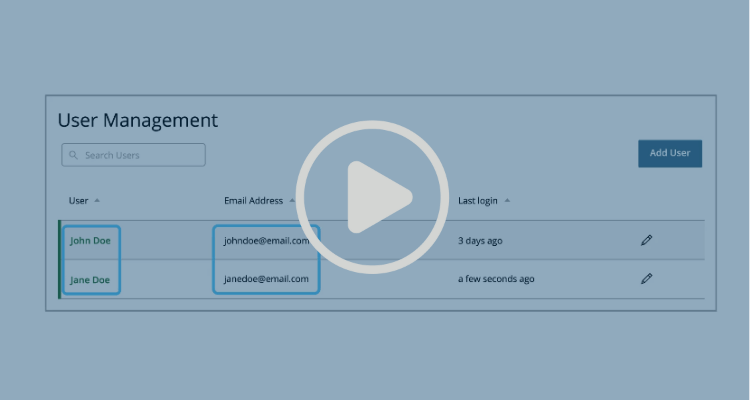
If your online banking profile is set up to add users, you will be able to do so. Contact a Treasury Management representative for help with this feature.
You may add as many users as you need to cover all the roles you have assigned to your organization.
Yes. You can set this up yourself or contact a Treasury Management representative for help with this task.
A Secure Access Code (SAC) is a unique, single-use 6-digit code which protects against fraud by safeguarding your online transactions and sensitive information. A SAC is another level of authentication in addition to your Login ID and password, providing you stronger online security.
You choose how you want to receive your SAC: by text, email, or phone. We need your current contact information for you to receive your SAC.
No, once you have set up a SAC, you have the option to register your computer or device. Once your computer or device is registered, you will skip the SAC requirement when you log in again from the same device. To register your computer or device, click “Register Device” at login.